When this helps
Two PDFs look similar, but you want to check whether a new draft changed a paragraph, a number or only the document properties. A comparison separates those questions instead of reducing them to a single “different” badge.
Try it in the checker
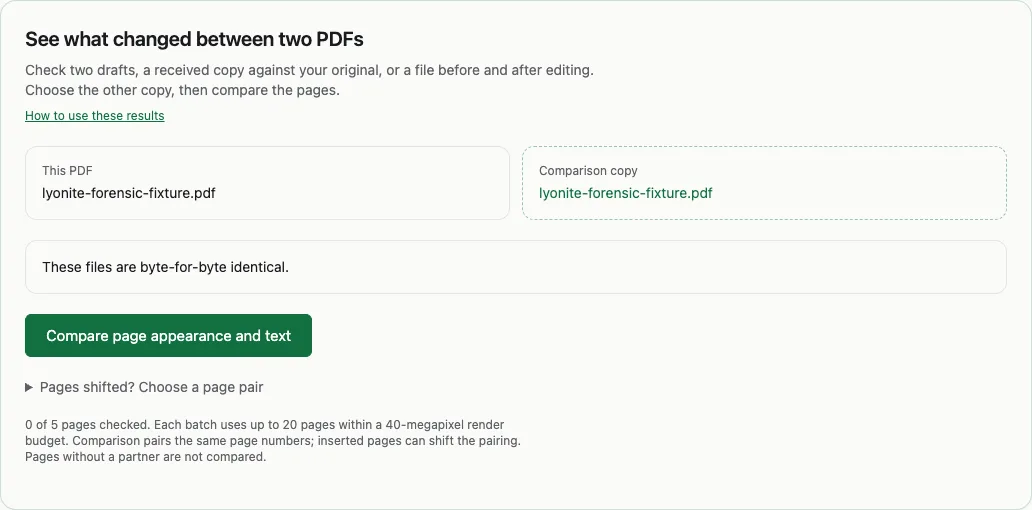
Load the first copy in the checker. Choose Compare PDFs and select the second file under Comparison copy. The initial result checks file hashes, current properties and page counts. Click Compare page appearance and text to render the pages.
Read the two named previews side by side. Red areas on This PDF indicate pixel differences at the configured threshold. Expand Extracted text and measurement details to read the text from both pages. Check the coverage line; use the next-batch button when more pages remain.
Read the result in context
If the hashes match, the files contain identical bytes. If hashes differ but the rendered pages match, an editor may have changed metadata, compression or internal structure without changing the sampled appearance. A page match is narrower than a file match.
Pages are paired by number. An inserted cover can make page 2 correspond to page 3 in the other copy. Review the pairing before interpreting highlights. Expand Pages shifted? Choose a page pair, enter the corresponding page numbers and compare that pair. Different page dimensions are reported without a fabricated “100% changed” score.
What this cannot establish
The comparison is not automatic document alignment, OCR, semantic review or fraud detection. Extracted text on an image-only scan may be empty while the images differ. Render settings and fonts affect pixels, and very small changes may fall below the threshold. Only the listed pages were checked; pages with no partner are not compared. Use the originals and the coverage record when sharing a result.