The page preview is only part of the file
You open a PDF, read its pages and see nothing unusual. Its Author field is blank. That tells you what the page looks like and what one field says. It does not tell you everything the file contains.
A PDF can carry a reviewer’s name in a comment, location data in a photo, an attached spreadsheet or an earlier saved copy. None requires a visible line saying “this information is here”. Some is ordinary, useful document data. Some may be information you would rather not share.
The useful question is not whether a PDF has “secret metadata”. It is which parts you need to inspect for the job in front of you.
Metadata describes something; it is not everything hidden
Document metadata includes fields such as Title, Author, dates and software names. PDFs commonly store it in a properties record called the Info dictionary and an additional record called XMP. Both can describe the same document and still disagree.
Metadata can also describe a smaller part of the file. A photograph may retain camera details or GPS coordinates. A comment may record a name and date. The software creating the PDF may preserve or discard these details, so their presence varies.
Attachments and scripts are different: they are contents or instructions stored in the PDF. PDF objects are the building blocks that hold things such as pages, fonts, images and metadata. An object is not automatically metadata, and finding an unfamiliar object is not evidence of concealment.
Start with what PDF metadata means if you want the field names explained. Before you share, below, shows how to inspect comments, photos and attachments in an actual file.
An example: the current author is not the earlier author
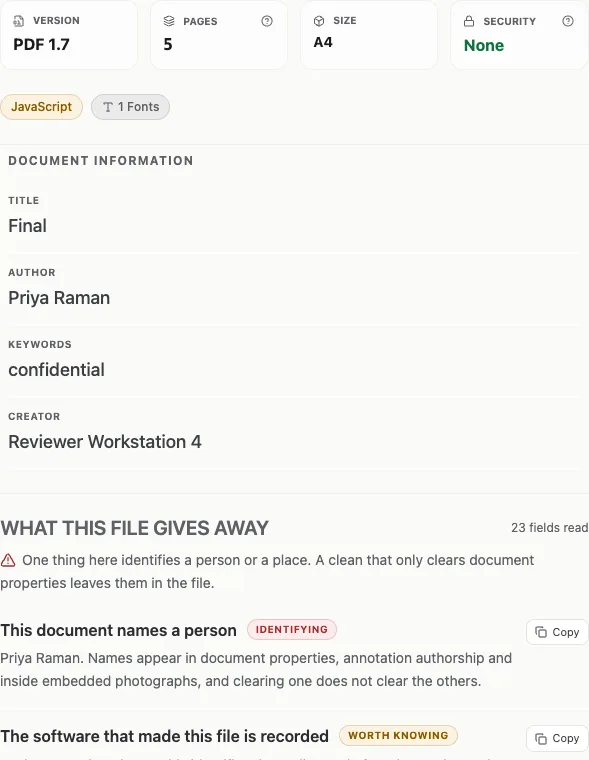
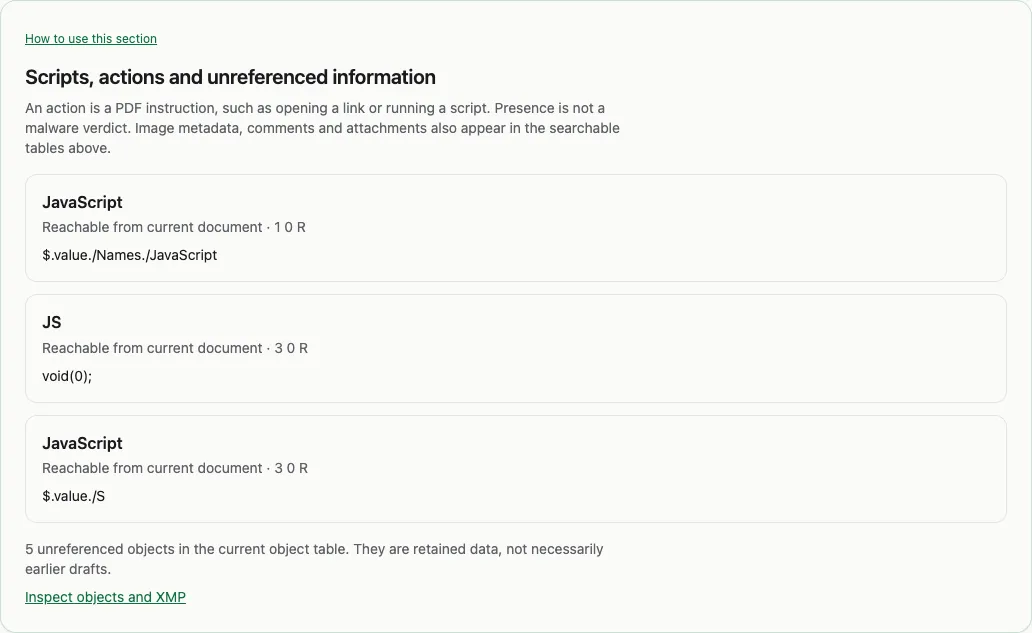
Our public sample PDF is deliberately constructed for testing. It contains six retained file states, changes to document properties, JavaScript actions and an unreferenced XMP record. It is not a discovered leak or evidence about a real person.
In its current properties, the title is “Final” and the author is “Priya Raman”. An earlier version records “Draft one” and “Jane Doe”. A tool that mixes records from different saves can give a confident-looking answer to the wrong question.
To follow the example, open the sample in the PDF Metadata Checker and choose Saved versions. Select an earlier version and choose Read version properties. The earlier values belong to that version; they do not replace the current author.
The same fixture underpins our comparison of PDF inspection tools. That article reports individual observations and limitations. Here, the lesson is simpler: before interpreting a value, know which part and which version of the file supplied it.
PDF edit history is whatever this copy kept
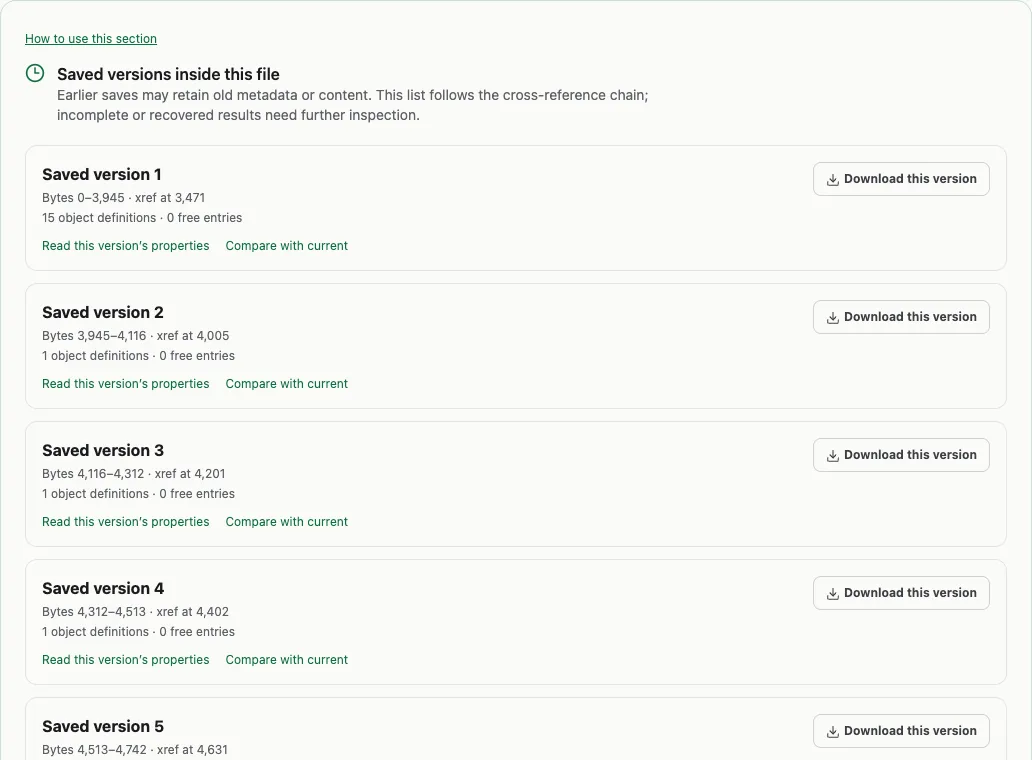
Some PDF saves append changes to the existing file. Earlier data can remain, and a checker can follow the links between saved states. Other operations rewrite the file and may leave no earlier version to recover.
Six stored versions therefore means six retained file states. It does not mean six human edits. One save can change many pages; a routine signing operation can add another state. One retained version does not prove a file has never been edited.
To look, open the PDF in the checker and choose Saved versions. Read any incomplete-history notice before you rely on the count. Select a version: Read version properties shows its recorded fields, Download this version saves that earlier copy as a separate file, and Compare with current sets it against the PDF you started with. Your source PDF is unchanged.
The checker follows the file's cross-reference links rather than counting every end-of-file marker as a save. Damaged links can leave the history incomplete, and nothing can recover an edit that was overwritten or never kept. An earlier version can expose old content, but it is not a dependable way to recover redacted text. If you already have two separate drafts, compare the PDFs instead of hoping one contains the other.
Before you share: comments, photos and attachments
You clear Title and Author, and the PDF can still name you. Document properties are one place among several. A comment records who wrote it; a placed photograph can keep its camera details and GPS position; an attached file carries its own contents and metadata.
In the checker, choose Hidden data. It lists names in comments, metadata inside photos, attached files and scripts, and each table says where its information came from. Search within the section for a name or value you are worried about.
A comment that names “Sample Reviewer” in a PDF whose Author is empty is an annotation field, not evidence that Sample Reviewer wrote the document. And clearing document properties does not touch the metadata inside a photograph on page 3. When you decide to clean a copy, Remove PDF Metadata strips comment authors and timestamps, camera and GPS data inside embedded JPEGs, and attached files, then reports what it removed and anything it skipped. The words of a comment stay, so read them yourself. Keep the original if you need its history.
This is an inspection of metadata and file structure, not a redaction. A name printed on a page, a screenshot of an address or readable text inside an attachment still identifies you when every metadata field is empty. No findings means none were found within the checks that completed.
Invisible text can be useful—or worth checking
A scanned PDF may contain an invisible text layer so you can search or copy its words. Text can also be transparent, outside the page or overlapped by other content. Those conditions have ordinary explanations, so a count of “hidden text” is not a fraud finding.
A rectangle drawn over a name is a separate problem: it may cover text without removing the text underneath. Reading extracted text can reveal some such mistakes, but it is not a complete redaction audit. For an image-only page, Page text runs local English OCR; that can read visible words but cannot recover text that was removed before the page became an image.
Read the page-text guide to understand the results and which pages were checked. For two copies, page previews and extracted text answer different questions; review both when a difference matters.
Choose the check that matches your task
- Before sharing: check names in properties and comments, photo metadata and attachments. If you clean a copy, inspect the result and anything the remover skipped. Read the pages too.
- Reviewing a received PDF: keep current properties separate from earlier records. Metadata can be edited; it cannot establish the document’s whole history or who wrote it.
- Checking a signature: use the signature guide. A matching signature checks signed bytes. Certificate trust, signer identity and later changes are separate questions.
- Investigating a technical inconsistency: open PDF objects, XMP and raw bytes. Unreferenced data is still stored in the file, but its presence alone does not explain how it got there.
- Keeping a record: download an inspection report with the completed checks and their limits. A report is not a certificate of authenticity.
You do not need to learn the PDF specification to start. Read the common properties, follow the result relevant to your task, and go deeper when the evidence calls for it.